



4.10.2 Finding BSCW objects
BSCW’s built-in search engine helps you find objects on your BSCW server. You specify your search in the ‘Edit Query’ form of a BSCW search.
- The ‘Search in’ field contains the name of the folder where the search is to start. If you have numerous objects in many workspaces, try to limit the search to the most promising folder and avoid a time consuming search ‘in your workspaces’ — due to a ‘time-out’ of your Web browser, your BSCW session could be aborted.
- The ‘for type’ field determines the type of object you are looking for: document, folder, etc. or ‘any’ if you don’t know the type.
- The rest of the form is about the search criteria that are to be matched by the objects you are looking for.
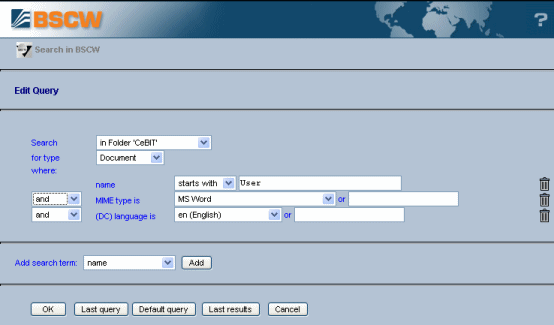
Figure 4.10-1: BSCW search form
The search criterion listed by default is the name
of an object. Other criteria may be added such as
‘content’, ‘description’, etc., also
including user-defined attributes
(see 3.6). Select a criterion
from the ‘Add search term’ field and click [Add]. You
can remove a search criterion again by clicking on the
 icon to its right. Search criteria may be combined to form more complex
queries by using ‘and’, ‘or’,
‘and not’ and ‘or not’. You may also return
to the [Default Query].
icon to its right. Search criteria may be combined to form more complex
queries by using ‘and’, ‘or’,
‘and not’ and ‘or not’. You may also return
to the [Default Query].
BSCW will display the search result (i.e. the list of hits) as a folder listing. The description of each object names the folder that contains the object. Make sure that you have activated the option .
Please note that the search for document content (full text search) is only possible for plain text and HTML documents (MIME type text/plain and text/html) if no indexing server has been installed with your BSCW server. In any case, a content search criterion is only applied after the other search criteria have been evaluated. So, if you are only looking for documents based on content, you should use the search ‘In your documents’ when your BSCW installation offers an indexing service (see 4.10.3).
