



4.4.4 Creating a workspace banner
Every folder page has a header consisting of several lines (cf. 3.1). By default, the space below the navigation bar is empty, as shown in figure 4.4-1.

Figure 4.4-1: Header section of a folder page without banner
You may insert a banner into this space:
- Choose .
- In the ‘Change Banner’ form, specify the banner as HTML text (with links to pictures etc.). With some more recent Web browsers (e.g. Mozilla Firefox, Internet Explorer 6.0 and up) you enter and edit the banner using an HTML editor that has been integrated into BSCW (cf. also 4.3.3).
With a banner, the header of a workspace and the folders contained might look like shown in figure 4.4-2.
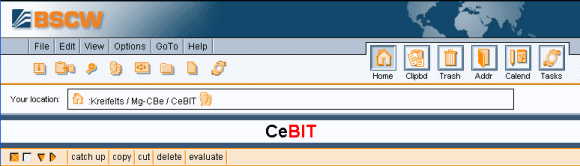
Figure 4.4-2: Header section of a folder page with banner
The banner is ‘inherited’ by subfolders unless you define a new banner there or
- choose
 ,
clear the banner and confirm with [OK]. Now the banner is empty
again.
,
clear the banner and confirm with [OK]. Now the banner is empty
again.
