



9.4.1 Installation of the JUploader program
The following requirements must be met for the installation of the JUploader program:
- Java virtual machine (JVM) of version 1.4 or later (J2SE JDK/JRE 1.4) and approximately 2 MB disk space. During the installation a search for installed JVMs will be performed. You have to choose a matching JVM — i.e. with a version of 1.4 or higher. The JUploader will not work with older versions of Java. If you do not have Java installed on your system you may want to choose one of the installers provided that come with a Java VM.
- Installers for the following platforms are provided:
- Windows: 98/NT/2000/XP
- Unix: SUN Solaris/Linux/other Unix systems
- other Java-enabled operating systems
- Note:
- There is currently no support for MacOS.
You need to follow the installation instructions for your local operating system that are provided on the download page for the JUploader (to be reached from the general BSCW download page http://bscw.fit.fraunhofer.de/Download.html). The installation will typically start with the download of the software and the launch of the install wizard. The installation process for Windows, e.g., works as described below.
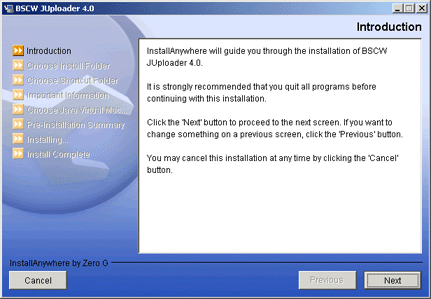
Figure 9.4-1: The start screen of the install wizard
- Choose a folder for the installation of the uploader.
- Choose where to store the icons for the uploader.
- Read important installation notes.
- Choose a Java virtual machine.
- Review installation details.
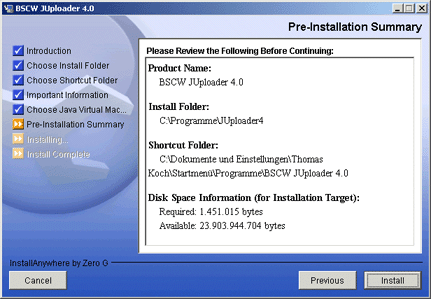
Figure 9.4-2: The installation details
After installation of the JUploader program you need to configure your Web browser in such a way that the uploader is launched automatically whenever the action is carried out in BSCW. This is done by registering the respective MIME type application/x-bscw-helper with your Web browser. Registration of the uploader with the Web browser can be done automatically (currently supported on Windows only) or manually (on other operating systems). For automatic registration you start the uploader once and confirm the registration; for manual registration follow the hints given on the uploader download page.
