


Interface for Version 4
1 The Folder page
2 Shared objects in a Workspace
3 Personal and public objects
4 Actions on the current Folder: Uploading and creating objects
5 Actions on selected objects
6 Actions on one particular object
7 Context sensitive help
This section can touch upon only a small subset of BSCW functions. It is intended to give you a first impression of what a BSCW Workspace looks like.
Please bear in mind that the example of the Folder page, the objects we describe and also the actions we discuss may not be available to you in some of your Workspaces. This may be due to
- the configuration of the BSCW server you use
- variations in the role you fulfil
- the level of proficiency with BSCW that you have chosen for yourself. At the Beginner level - the default when you start using BSCW - you will not see all the actions shown below.
1 The Folder page
The basic concept of BSCW is the Workspace, adopting Macintosh or Windows terminology: a Folder-
for a specific group of BSCW users -- represented by the
 icon - who can
 - read and edit, add, move and delete objects in this shared Folder.
In the HTML-based user interface, BSCW presents the contents of a Folder or Workspace as the central part of a page – preceded by a header containing popup menus, buttons and action shortcuts.
Figure 1 shows a Folder page with examples of the objects that you can create and share in BSCW. Please note that different icons are used to represent the different types of objects.
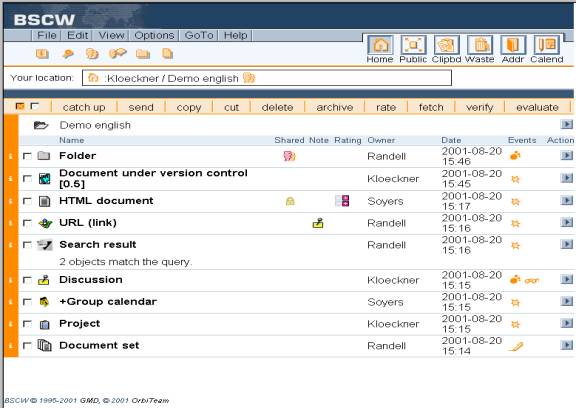
Figure 1: Example of a folder page
2 Shared objects in a Workspace
Several classes of objects can be created and shared in a BSCW Workspace:- Document
- Document under version control
- Note
- URL
- Search Result
- Folder
- Discussion
- Calendar
- Project
- Document Set
Each object is represented by an entry starting with a checkbox that you may "tick" to select the object for some action, some icons, additional data and a popup action menu button.

Figure 2: Representation of an object
Click the  icon next
to the checkbox to display the object's Info page.
icon next
to the checkbox to display the object's Info page.
The icon immediately left of the object name denotes the object type. If the object is a Document, the icon may represent its MIME type, if it is a Search Result, the icon informs about the search area and the search engine employed, if it is a Note, the icon may represent a pragmatic aspect picked by the Note's author.
Most prominent in each entry is the name of the object. In Fig. 1 each object has been given the name of its object type. Obviously, you should choose names describing the content or purpose of each individual object. Since BSCW is designed to make sharing of information easier, it is very important to use descriptive names which will be understood by the other people sharing the Workspace.
Behind the object name BSCW displays
- Zero, one or more of the following icons:
- the user name of its owner;
- date and time of the most recent modification;
- zero, one or more icons indicating that some of the following events have occurred:
indicates that a folder
is shared;
 indicates that someone
has set a lock for this object;
indicates that someone
has set a lock for this object;
 indicates that a note has
been added to the object;
indicates that a note has
been added to the object;
 indicates that the document
has been rated by one or more group members;
indicates that the document
has been rated by one or more group members;
- a popup menu button showing the actions involving the object.
 indicates a new object;
 indicates changes to the
object;
indicates changes to the
object;
 indicates that someone
read the object;
indicates that someone
read the object;
 indicates recent modifications
in a sub-object;
indicates recent modifications
in a sub-object;
Please note that different actions are possible for different types
of objects. In Figure 6 only a few of the actions permitted for an
object are shown in the menu displayed. Depending on the individual access
rights the number of actions permitted may vary.
3 Personal and public objects
In the upper right hand side of the interface you find an instant access bar showing the icons described below. Those icons- cannot be made accessible to other users, but are
- available to you in each of your Folders or Workspaces:
 This icon represents
your personal workspace, i.e. your home Folder.
This icon represents
your personal workspace, i.e. your home Folder.
 The Public Workspace represents
the home Folder of user anonymous. This Folder contains all objects on
your BSCW server that may be accessed anonymously. Click this icon to access
your BSCW server under the guise of user anonymous without terminating
your current session under your "real" user name.
The Public Workspace represents
the home Folder of user anonymous. This Folder contains all objects on
your BSCW server that may be accessed anonymously. Click this icon to access
your BSCW server under the guise of user anonymous without terminating
your current session under your "real" user name.
 Your Clipboard may serve
as an intermediate store.
Your Clipboard may serve
as an intermediate store.
 Your Wastebasket helps to
prevent unauthorized or unintentional deletion of objects: In BSCW, an
object can be irrevocably destroyed only from the Wastebasket of its owner.
Your Wastebasket helps to
prevent unauthorized or unintentional deletion of objects: In BSCW, an
object can be irrevocably destroyed only from the Wastebasket of its owner.
 Your Address Book is used
mainly to invite new members to your Workspaces and
to assign specific roles where necessary.
Your Address Book is used
mainly to invite new members to your Workspaces and
to assign specific roles where necessary.
 Your Calendar shows your
appointments.
Your Calendar shows your
appointments.
4 Actions on the current Folder or Workspace
Objects are created by performing actions on the current Folder. The popup menus (and action shortcuts for the most frequent actions) that trigger these actions are located in the top section of the Folder page.
Figure 3: Main menu and action shortcuts
New objects are added by selecting one of the File menu entries from the main menu (or the respective action shortcut):

Figure 4: How to create a document
- Select [File --> New] and an object from (Folder|URL|Meeting|Discussion|Search|Document|Project) in order to create an object of the specified type directly on the BSCW server.
- Select [File --> New --> Document] to upload a file from your local computer system to the current BSCW Folder or Workspace.
Existing objects are transferred from your Clipboard:
-
Select
 in your Edit menu
to add objects that were brought onto your Clipboard from somewhere in
your Folders or Workspaces by the most recent
in your Edit menu
to add objects that were brought onto your Clipboard from somewhere in
your Folders or Workspaces by the most recent  or
or  action to the current
Folder. The objects might also just have been "created" by BSCW through
a 'Convert' or 'Archive' or 'Extract' action.
action to the current
Folder. The objects might also just have been "created" by BSCW through
a 'Convert' or 'Archive' or 'Extract' action.
5 Actions on selected objects
Directly above the list of objects in a Folder page you find some buttons for actions which can be applied to several selected objects:
Figure 5: Action buttons
Objects are selected by "ticking" their checkboxes.
 and
and are shortcuts for selecting or de-selecting all objects within a folder.
For example:
are shortcuts for selecting or de-selecting all objects within a folder.
For example:
< or
transfer the selected objects - or their copies, respectively - to your
Clipboard
 transfers the selected objects
to your Wastebasket.
transfers the selected objects
to your Wastebasket.
Objects transferred from a Workspace to your Clipboard or your Wastebasket are no longer visible to the other members of the Workspace.
Buttons such as  or
or  trigger actions that can be applied only to objects of specific types.
6 Actions on one particular object
At the right hand side each object name in the Folder page, you find an action button for operations to be applied only to that particular object, for example
Figure 6: The Action menu for a Document
The configuration of the Action menu depends on the type of object -- for example, different actions are appropriate for a URL object, a Folder or a Document.
BSCW will not display the Action menu entries for actions that you may not perform on the specific object, e. g. due to the role assigned to a user. A Role defines the set of objects and actions you may use for your personal task. Access right management in BSCW is based on those Roles. You may invite new workspace members assigning them roles, e.g. teacher or student. Roles define access profiles and can be attached to any object in BSCW. A set of pre-defined roles may serve as a starting point: workspace manager, owner, group member and restricted member (read-only access) are default roles - define your own roles at will. Role assignments are inherited from the folder hierarchy and can be modified at any time.
Be aware that nearly all the icons in an object entry are “clickable”,
i.e. you get more information on a group, a lock, a note, a rating etc.
when you click on it.
7 Context sensitive help
The context sensitive help will help you better find your way through the system. In many application environments you just click the button and get an explanation of the action you are just going to launch.
